
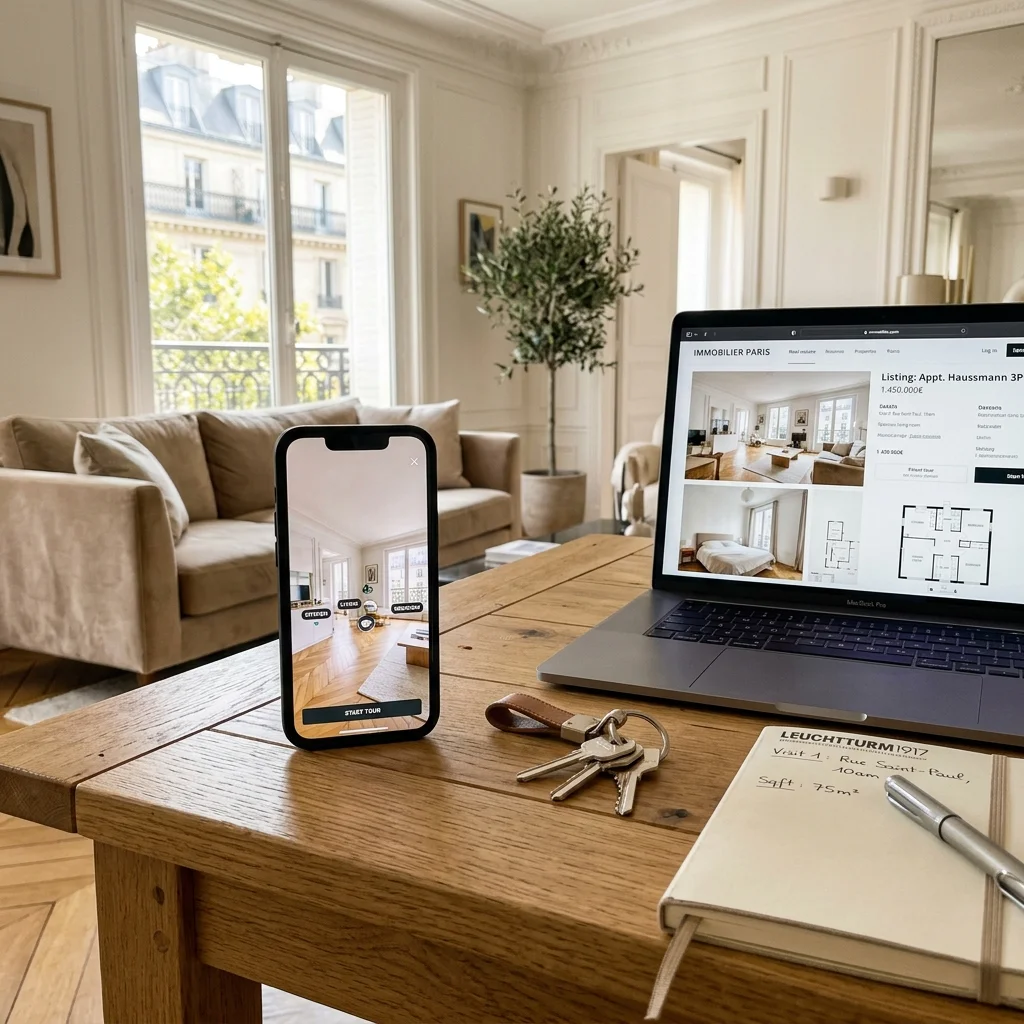
Give the tour a visible place
A tour only helps if buyers can find it. Use the platform’s dedicated tour or multimedia field where available. The display, badges and eligibility depend on the portal and account type; adding a tour does not guarantee a ranking improvement or more enquiries.
Do not rely on a pasted URL alone
A URL in a description may be displayed as plain text, especially on mobile. Some platforms restrict external links. Preview the live listing and follow its publishing rules. When a dedicated field is available, use it rather than asking the buyer to copy an address.
Check the portal and your publishing software
Check the publishing options on the property portal you use and in your agency software. Available link and video fields vary by platform, country and account type.
- Look for a tour, video or multimedia field.
- If using agency software, check which field is sent to the portal.
- Preview the published listing on both desktop and mobile.
- If links are not supported, offer to send the tour when replying to an enquiry, within the platform’s rules.
Send the tour with the first reply
A direct link lets someone check the layout before arranging a viewing. Keep the message short and helpful:
Thanks for your enquiry. Here is the property tour: [link]. You can explore the rooms in your browser. Let me know whether the layout suits you and which details you would like to check.
No buyer app is needed for a 1p1 tour. Follow up with practical questions rather than assuming that opening the link means the person is ready to book.
Use messaging, social posts and QR codes
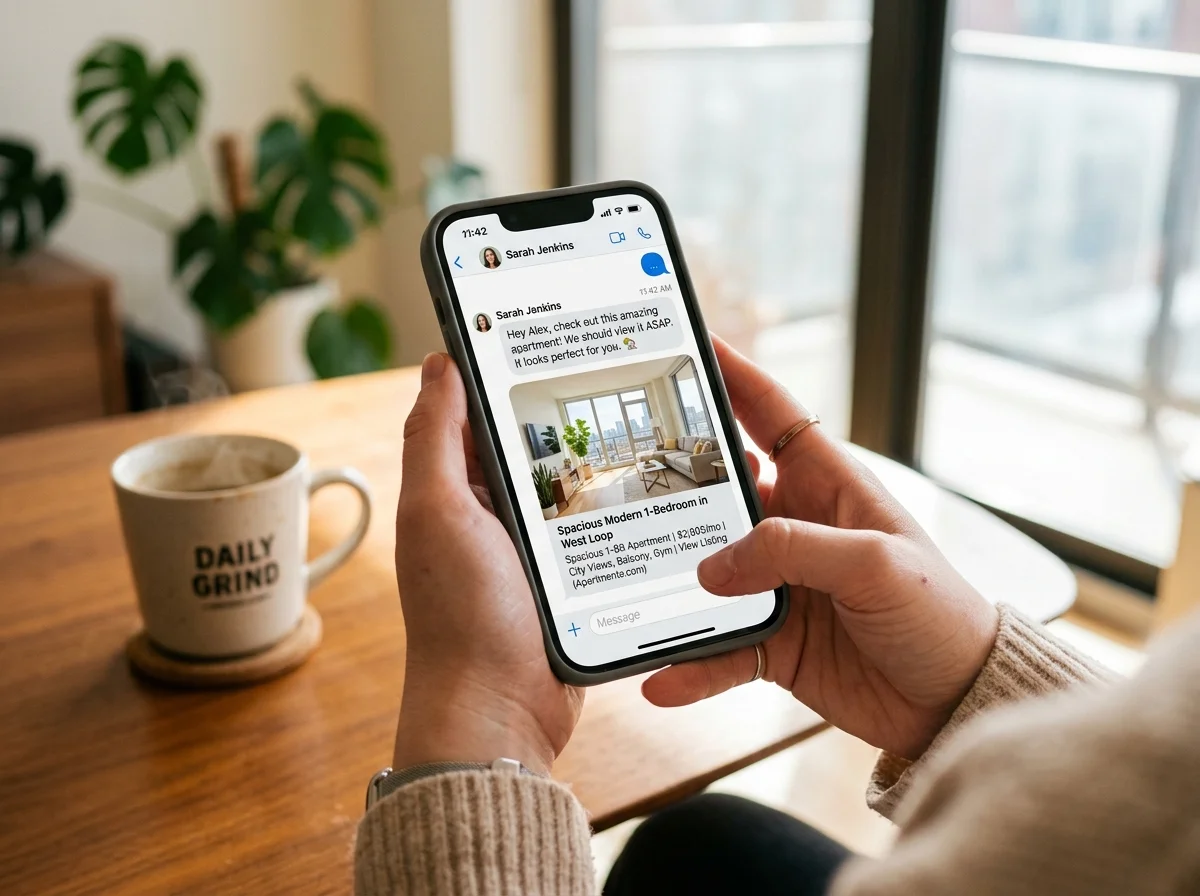
WhatsApp, SMS and email
Send the published link with a clear property name. Preview cards depend on the messaging service; check the result before reusing your message.
Social platforms
Use supported link locations. A published 1p1 tour also provides an MP4 export, so the same tour can supply a video for platforms that accept it. Check their format requirements.
Printed material
A QR code can point to the tour from a window card or brochure. Test it at the actual printed size, and include a readable fallback address where practical.
Check before sharing
- Open the published link in a fresh browser session.
- Check the first view and routes in both directions.
- Verify property details and the contact options you provided.
- Test the listing and message on a phone.
- Make sure hosting covers the intended listing period.
Common questions
Can buyers open it without an account?
Yes, the published 1p1 tour opens in a browser.
What if the portal has no suitable field?
Offer the tour in your reply to enquiries, following the portal’s rules.
What should I do after changing the tour?
Check the latest published version and test the shared link before sending it again.
Use the tour before arranging a viewing.
Try your first property tour
Create and preview for free. Publish when the tour is ready.
Get the app